Your affiliate link returns 200 OK. Is it landing where you expect?
A link can open successfully and still send readers to a shop homepage instead of the product you recommended. Here is how to check the route, record the evidence and decide what to change.
What 200 OK actually tells you
200 OK means the HTTP request succeeded. It does not establish that the page is the intended product, that an affiliate relationship is still active, or that a commission will be credited. A redirect can finish on an unexpected page that also responds with 200.
MDN: HTTP 200 OKA product link becomes a homepage link
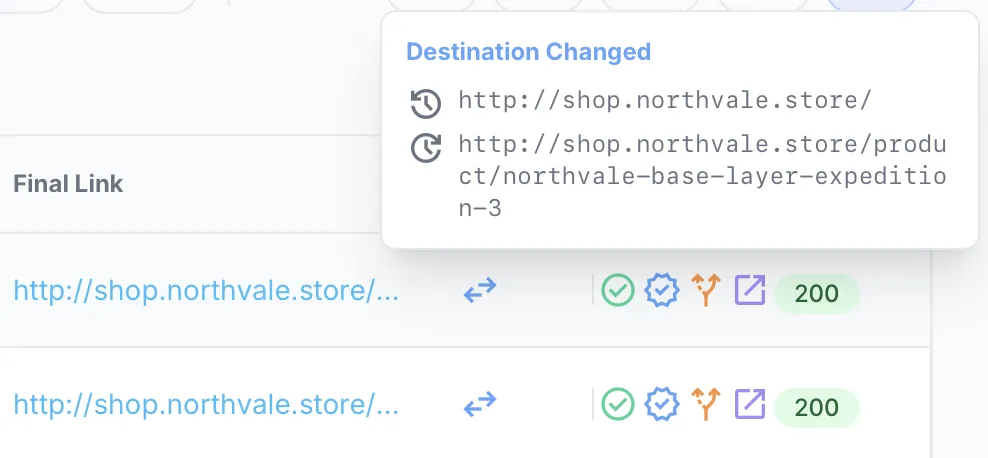
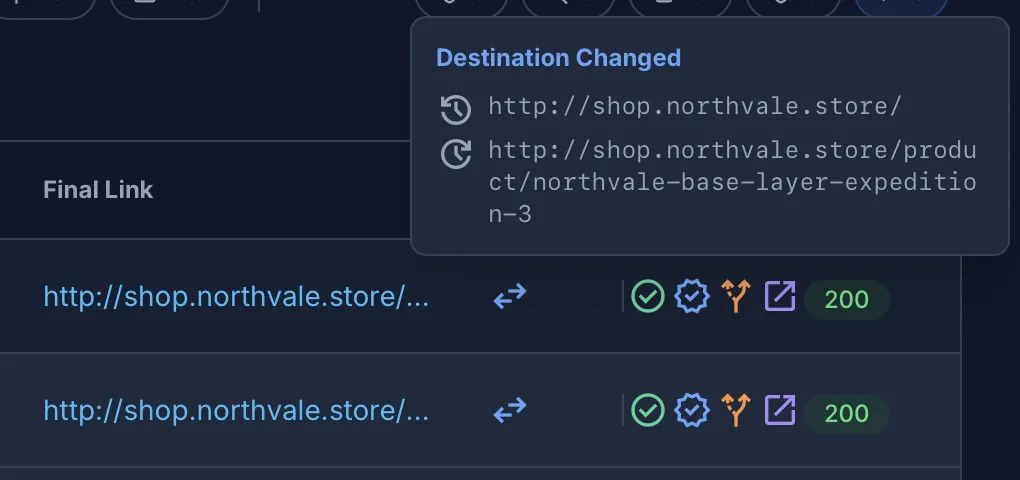
In our Pinecrest Reviews demo site, an affiliate redirect originally leads to a product page. Between scans, its destination changes to the shop homepage. The original link stays the same and the destination still responds with 200. Looking only for HTTP errors would miss this change.
Check the link in four steps
Start with the exact link on your page
Copy the outbound URL from the published article. Keep its query parameters intact. Record the source page and the product and storefront you expect. Testing a fresh link from the network dashboard may test a different route from the one readers actually use.
Record the redirects
In Chrome, open DevTools → Network before navigating to the copied URL. Turn on Preserve log and Disable cache. Inspect the document requests: note each Request URL, status code and redirect Location header. Record the final URL. Chrome's reference explains these controls.
Check the destination and visible affiliate signals
Is it the expected product, merchant and country? Compare the recorded route with the link your affiliate program supplied. A missing parameter or network hop deserves investigation, but its absence from the final URL alone does not prove tracking failed: a program may process it earlier in the route. An unfamiliar route is not proof of a problem either.
Compare with an earlier check
Save the original URL, redirect chain, final URL, check time and browser context. Repeat under comparable conditions. A country, device, consent state or login can affect the browser's route. Without a previous observation, you can identify an unexpected destination today, but cannot establish when it changed.
Choose a next step from the evidence
- Wrong product or homepage: confirm the intended replacement with the merchant or network, update the article and check the new route.
- Unexpected storefront: reproduce the route in the affected reader's country and device context before changing localization settings.
- Affiliate signal changed: check the program's current link format and send support the observed route and timestamps. Ask them to verify attribution.
- Route looks as expected: investigate traffic, conversion and network reporting separately. A healthy route cannot rule out a commission problem.
Keep a baseline so the next change is visible
Linkoria reads outbound links from your page's HTML, follows their redirect chains and records the final destinations and recognizable affiliate signals. After a second scan, it compares the results and surfaces destination changes, broken links and lost affiliate classification. “Lost tracking” means a previously affiliate-classified link is no longer recognized as affiliate; it is a prompt to investigate, not proof of a lost commission.
A single-page scan does not need a sitemap. Domain scans do. Linkoria does not inspect internal links, execute JavaScript or see links inserted only by JavaScript. Its HTTP scan may differ from a browser session. It cannot confirm purchases, product availability or credited commissions.
Scan one pageCreate an account, then add one page URL as your monitoring target. Free during early access. The first scan records the baseline; changes appear after another scan.
See how Linkoria works →